






Guide · Stock footage
How to Turn Raw Footage Into Stock Clips
Every step from card dump to upload-ready clip. What it takes by hand, what it takes with Stock Shredder, and where each one falls short.
The short version
- Find the usable moments in each file.
- Trim each one to 10 to 20 seconds, with a little handle.
- Grade log footage to a normal look.
- Drop broken, shaky and logo shots.
- Export every clip as its own file, at native size.
- Name and keyword every clip.
By hand that's about 2 minutes per clip. 1,000 clips is 33+ hours. With Stock Shredder, the same 1,000 clips took 3 hours 1 minute, plus your review.
Your archive is full of clips you never shipped.
One shoot day can hold hundreds of sellable moments. A drive full of shoots can hold thousands.
The footage isn't the problem. The prep is. Scrub, mark, trim, grade, export, name, tag. One clip at a time. It's slow enough that most of it never gets uploaded.
Here's the full job, how long it takes, and how to do it faster.
What a stock-ready clip needs.
Every site has its own rules, so check yours before you upload. These are the ones that come up the most, using Adobe Stock's guidelines as the example.
| Check | What sites want |
|---|---|
| Length | 5 to 60 seconds. 10 to 20 is the sweet spot. |
| Handles | 1 to 5 seconds of clean footage at each end. |
| Clean in and out | No focus hunting or zoom moves at the start or end. |
| Color | No ungraded log. A basic Rec 709 look is fine. |
| Size | Native frame size. Don't upscale HD to 4K. |
| Frame rate | Standard rates: 23.98, 24, 25, 29.97, 30, 50, 59.94, 60. |
| Content | No visible logos or trademarks. No added music. |
| File | ProRes or H.264 in MOV or MP4. Adobe caps files at 3.9 GB. |
| Metadata | A clear title and relevant keywords for every clip. |
Source: Adobe Stock technical requirements. Checked November 2026.
The by-hand way.
Most shooters do this in Premiere Pro, Resolve or Final Cut. It works. It's just slow.
- Import and scrub. Drop the card into a timeline and watch everything to find the good moments.
- Mark and cut. Set an in and out for every moment. Leave handles. Skip the focus pulls.
- Grade. Add a LUT or an adjustment layer. Check exposure shot by shot.
- Cull. Spot the shaky, the broken and anything with a logo in frame.
- Export. Queue every clip as its own file. Batch export helps, but each one still needs its own range.
- Name and tag. Type a title and keywords for each clip, then upload.
Our average by hand is about 2 minutes per clip. That's how a 1,000-clip archive turns into a 33-hour week.
The Stock Shredder way.
Stock Shredder runs on your Mac or Windows computer and does the repetitive parts for you. You stay in charge of what ships.
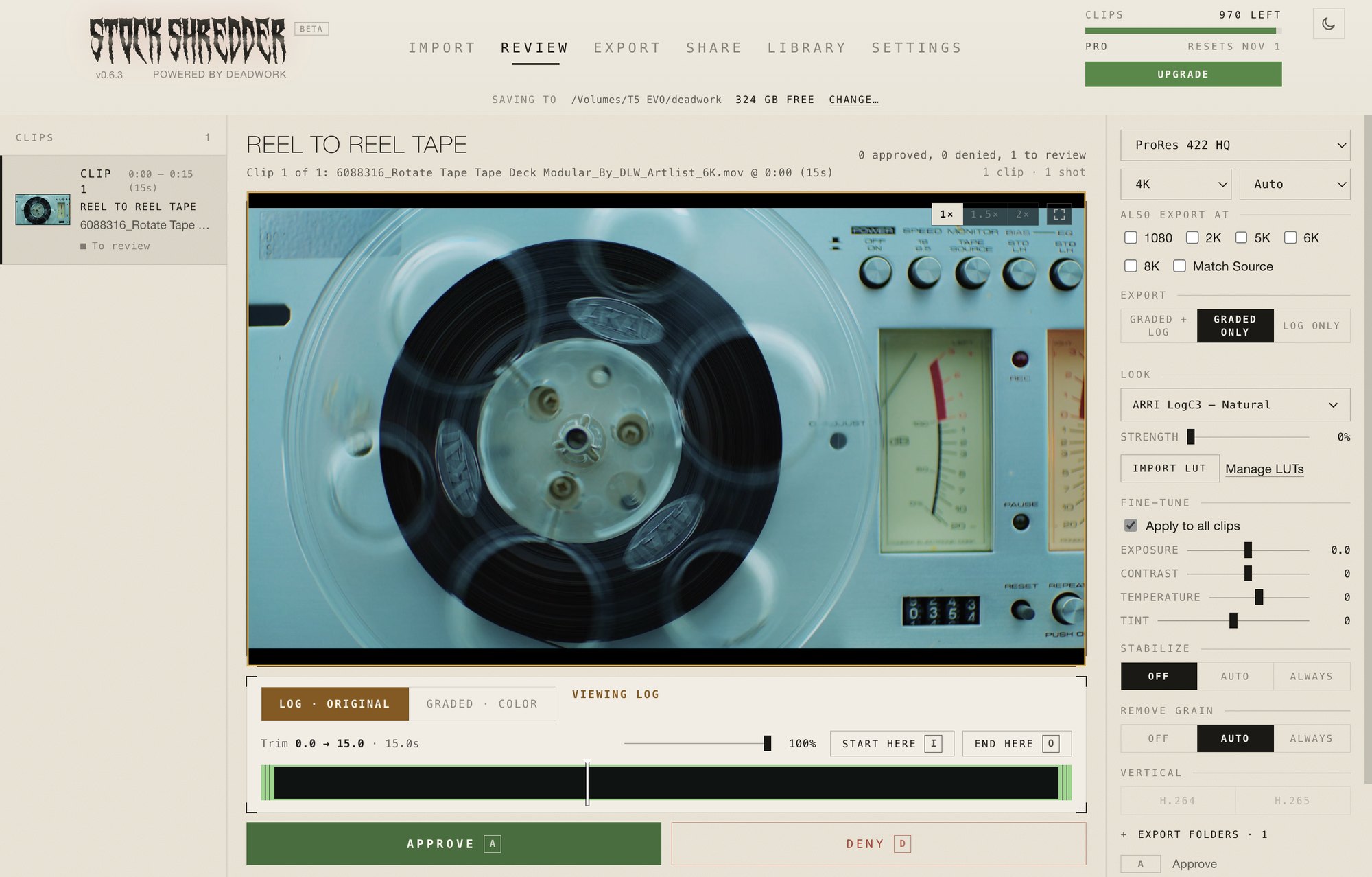
- Select. Point it at a folder of raw footage. MP4, MOV, MXF, Blackmagic RAW and more.
- Shred. It finds the usable moments and trims them. Broken, empty and too-shaky clips get set aside.
- Review. Approve or deny each clip. Nudge the trim if you want. It remembers what you've reviewed, so you never see a clip twice.
- Send. Pick a look for ARRI, DJI, RED or Sony, or load your own LUT. Export ProRes up to 8K, graded, log, or both in one pass.
- Share. Every clip gets a clear name, its own folder and ready-to-paste keywords.
The time difference, measured.
Real Sony FX6 and FX3 footage on a MacBook Pro M3 Pro, exported to an external SSD as graded ProRes 422 HQ 4K.
| 4K clips | Stock Shredder | By hand | Failed |
|---|---|---|---|
| 100 | 16 min | 3+ hours | 0 |
| 500 | 1 hr 19 min | 16+ hours | 0 |
| 1,000 | 3 hr 1 min | 33+ hours | 0 |
Stock Shredder time is shred plus export. Review time not included. By hand: 2 minutes per clip average.
Side by side.
| Task | By hand | Stock Shredder |
|---|---|---|
| Finding moments | Scrub every file | Found and trimmed for you |
| Trimming | In and out on every clip | Adjust only the ones you want |
| Grading | LUT per clip or per timeline | Saved Looks on one clip or all |
| Rejects | You spot them | Broken, empty and too-shaky set aside |
| Stock checks | You remember the rules | Flags logos, HDR, wrong frame rates and under 2K |
| Export | Queue each clip | Each clip its own file, several sizes in one pass |
| Names | Type each one | Named and foldered for you |
| Keywords | Type each one | Copy per clip or all at once |
| 1,000 4K clips | 33+ hours | 3 hr 1 min, plus review |
What to know before you start.
Stock Shredder handles the repetitive parts. A few things stay with you.
- You review. The times above don't include it. Keyboard shortcuts keep it quick, and Studio lets you approve from your phone.
- You pick what sells. It finds the usable shots. Your eye decides which ones are worth uploading.
- You upload. Names and keywords are ready to paste into each site.
- Check your format. Canon Cinema RAW Light and Nikon N-RAW aren't supported yet. RED and ARRIRAW work with the camera maker's free tools.
When by hand still makes sense.
- You only have a handful of clips this month.
- It's one hero shot that needs a full custom grade.
- Your footage is in a format Stock Shredder doesn't read yet.
For everything else, the hours add up fast. Your footage has value. It shouldn't sit on a drive.
FAQ
How long should a stock footage clip be?
Most sites take clips between 5 and 60 seconds. Adobe Stock recommends 10 to 20 seconds, with 1 to 5 seconds of handle at each end.
Do I need to color grade stock footage?
Yes, if you shot log. Adobe Stock asks contributors not to submit uncorrected log footage and suggests a basic Rec 709 LUT. Some sites also accept a log version next to the graded one.
Should I upscale HD footage to 4K for stock?
No. Adobe Stock asks you not to up-res footage. Upload in the native frame size.
How long does it take to prepare 1,000 stock clips?
By hand, at about 2 minutes per clip, around 33 hours. In our test, Stock Shredder shredded and exported 1,000 graded 4K ProRes clips in 3 hours 1 minute, not counting review.
Does Stock Shredder upload clips to stock sites?
No. It prepares the clips, names and keywords. You upload to each site yourself.
Does my footage leave my computer?
No. Your videos stay on your computer. A few small still frames from each shot go to an outside naming service so clips get names and keywords.